 Isaac Audio
Beta program · Private
Beta Lab
Private beta of the Dogma series. New here? Request access — we review every request personally and email you a personal key. Already have a key? Enter it to sign the beta agreement and download.
- 1 · Access
- 2 · Agreement
- 3 · Downloads
Request received
- 1Request sentNothing else to do on this page for now — you can close it.
- 2We review it personallyUsually within a few days. If you're in, you'll get an email from Isaac Audio with your personal Voucher Key and a link back here.
- 3Open the link in the emailThe key is filled in for you. Read and sign the beta agreement, then download the builds.
One request per email address is enough — sending it again won't speed things up. Can't find our email? Check spam or promotions. Typo in your address, or a question? Write to isaac.sound.studio@gmail.com.
Signed by on . You're in. Here is what to do now:
- Download your license (below). One file for all five plugins. A ZIP you download already has it inside.
- Download the build for your system and install it: extract the ZIP, then run the
Setup.exe(Windows) or open the.pkg(your system blocks it once — see "First time you open it" below). Both put the license in place. - Open the plugin in your DAW. It shows the beta terms once, with your name: click "I agree". After that the plugin looks as usual; click its version number, under its name, for your license details.
- Found something? Report it on the feedback page (the button below appears after your first download), or from the plugin: click its version number, under its name ➜ "Report a problem".
Personal and confidential: don't share the builds, your license or this page. This page works only in this browser, for 30 days, and each file can be downloaded up to 3 times. To send feedback later from any computer, sign in on the feedback page with your license file.
The plugins run only with it. One personal file for all five plugins. ZIP downloads already include it. Otherwise, download it and leave it in Downloads (Windows), or put it in Documents/Isaac Audio/Beta (macOS: ~/Library/Application Support/Isaac Audio/Beta).
One bundle for Windows and one for macOS (11 or later, Apple Silicon and Intel). Download the one for your computer.
| File | Size |
|---|
First time you open it
The beta builds aren't signed with a paid Apple/Windows certificate yet, so your system stops them once and shows one of the screens below. This is expected — it's about the missing certificate, not the file. Here's how to continue.
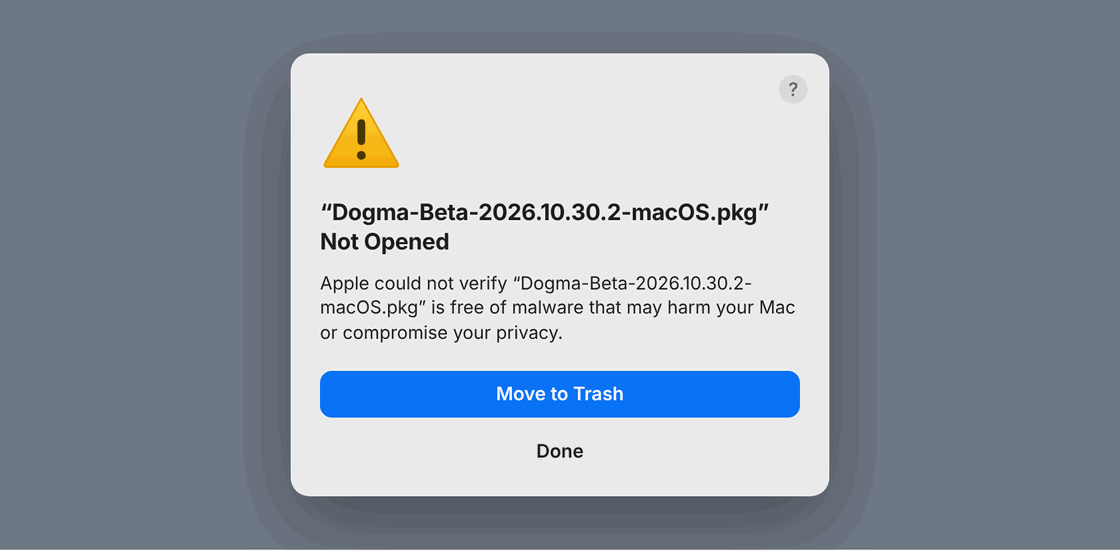
macOS
- Don't click Move to Trash — click Done.
- Open System Settings ➜ Privacy & Security and scroll down.
- Next to “Dogma-Beta-…-macOS.pkg was blocked” click Open Anyway, confirm with your password, then Open.
- On macOS 11–14 instead: right-click (Control-click) the
.pkg➜ Open ➜ Open.
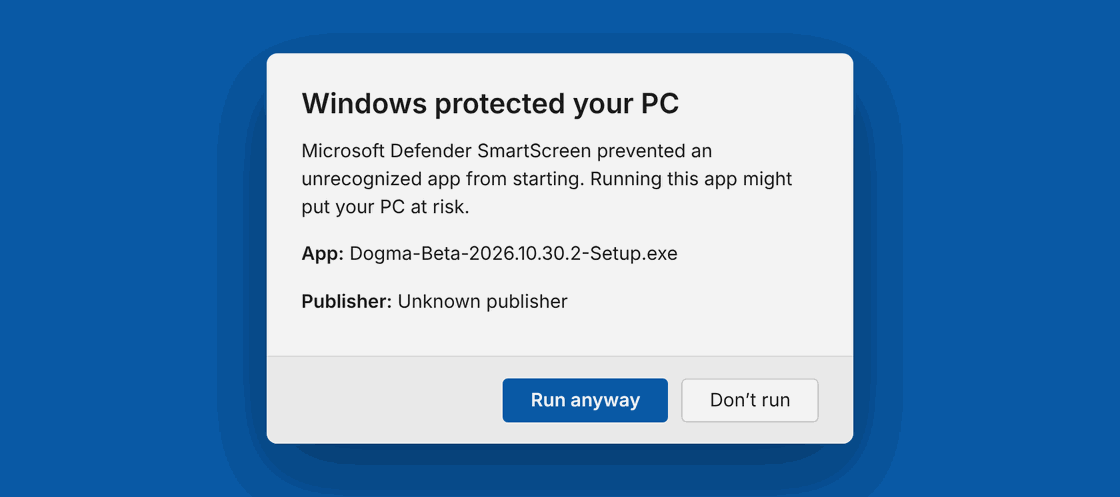
Windows
- Click More info in the blue window.
- The Run anyway button appears — click it.
- The
Setup.exeruns normally; continue Next to the end. - Shown as “Unknown publisher” only because the beta isn't certificate-signed yet.
A board for each plugin, shared by all the testers: report a bug, a crash, a sound problem or an idea (with screenshots or logs), see what others found, say "happens to me too" and join the discussion. Our answers and each report's status are there too.
How to install
Windows: extract the ZIP and run the Setup.exe in it. macOS: double-click the ZIP and open the .pkg in it (see "macOS: the first time" below). Either one installs the plug-ins you choose, in every format, and your license. Then restart Pro Tools or rescan plug-ins in your DAW. The installers put them here:
| Windows · AAX | C:\Program Files\Common Files\Avid\Audio\Plug-Ins |
|---|---|
| Windows · VST3 | C:\Program Files\Common Files\VST3 |
| Windows · CLAP | C:\Program Files\Common Files\CLAP |
| macOS · AAX | /Library/Application Support/Avid/Audio/Plug-Ins |
| macOS · AU | /Library/Audio/Plug-Ins/Components |
| macOS · VST3 | /Library/Audio/Plug-Ins/VST3 |
| macOS · CLAP | /Library/Audio/Plug-Ins/CLAP |
| macOS · apps | /Applications/Isaac Audio |
macOS: the first time. The beta installer is not signed with an Apple certificate yet, so macOS stops it once. On macOS 15 (Sequoia) and later: click Done, open System Settings > Privacy & Security, scroll down to "Dogma-Beta-…-macOS.pkg was blocked" and click Open Anyway (your password), then Open. On macOS 11–14: right-click (or Control-click) the .pkg > Open > Open. That's all: the installed plug-ins load without any other step. If a DAW still says a plug-in "is damaged" or "can't be opened", run this once in Terminal and rescan:sudo xattr -dr com.apple.quarantine /Library/Audio/Plug-Ins "/Library/Application Support/Avid/Audio/Plug-Ins" "/Applications/Isaac Audio"
The license. The first time you open a plugin it looks for your license file (ISAAC-AUDIO-Beta-License.isaaclic) in Documents\Isaac Audio\Beta (Windows, which also looks in Downloads) or ~/Library/Application Support/Isaac Audio/Beta (macOS). The installer in the ZIP puts it there for you. Without it, the plugin is silent and asks for it. Then it shows a short notice of the beta terms once, with your name.
Beta builds may not be notarized or commercially signed yet; your system may ask you to confirm before installing. Only install files downloaded from this page and check the SHA-256 shown next to each file.